
Introduction
Data. We live in a world that is inundated with data. We absorb a lot of information around us and we also give out information when necessary or voluntarily. To interact with a website, for instance, we are often presented with an HTML form, such as on a Contact Us page. On an e-commerce website, we can inquire about a specific product if there is a form associated with the product.
Forms can be as simple as a single email address collection for a newsletter subscription to a lengthy job application or better yet, a tax filing. Although we are used to filling out a multi-page form at the doctor’s office, however, when it comes to online forms, we might be hesitant. Unless there is a compelling reason or incentive, coupled with the form-filling process being manageable, intuitive, and somewhat painless, we might be dissuaded from completing a lengthy form. Hence, a website should offer a pleasant online user experience when collecting a significant amount of data from its intended audience.
What is a Multi-step Form?
A multi-step form is a form presented to the user in stages. A practical multi-step form informs the end-user of the process it will take to complete the form ahead in advance. Typically, the form filer will see where they are in the process if they notice a progress bar or a step counter somewhere on the multi-step form.
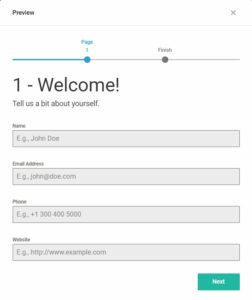
Forminator: Steps | Progress Bar
Why Would You Use a Multi-step Form?
You would use a multi-step form if you find yourself in one or more of these situations:
- You have a lot of data to collect and you can organize them into clear sections.
- Your data can be organized based on rules and conditions and different steps can be performed depending on prior steps.
- Your audience may prefer a multi-step form if they can pause and complete the form later.
- You want to potentially convert more of your site visitors to leads.
What is Forminator?
Forminator is a popular WordPress form builder plugin that creates interactive forms, quizzes, and polls. Supporting more than two dozen field types including payment types (PayPal and Stripe), mathematical calculations and e-signature, Forminator provides an easy-to-use intuitive interface to create a multi-step form. Let’s dive into how to create one with Forminator.
How to Create a Multi-step Form with Forminator
-
In the
Forminatorsidebar menu, selectFormsor selectCREATEon the main screen to create a new Form.
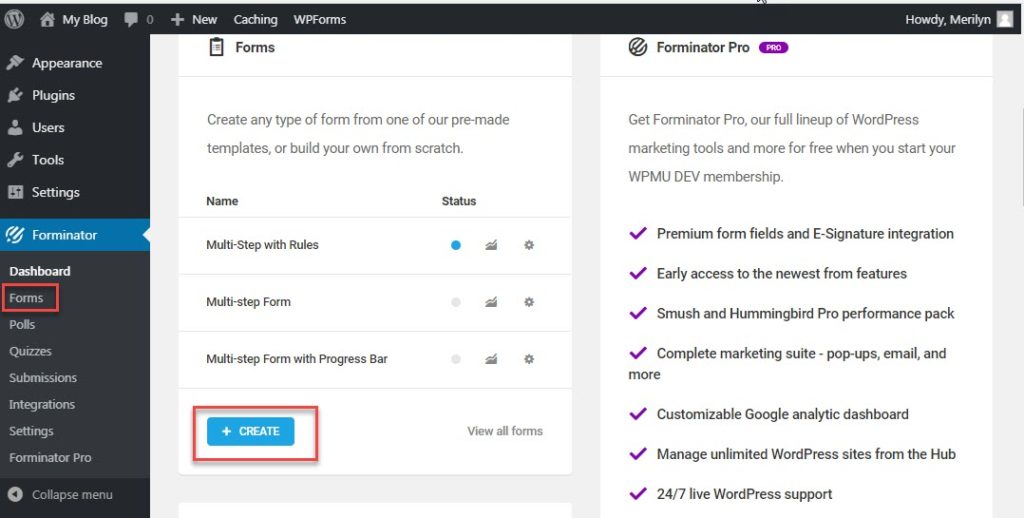
Forminator: Select Forms
-
Select a blank template. Click
Continue.
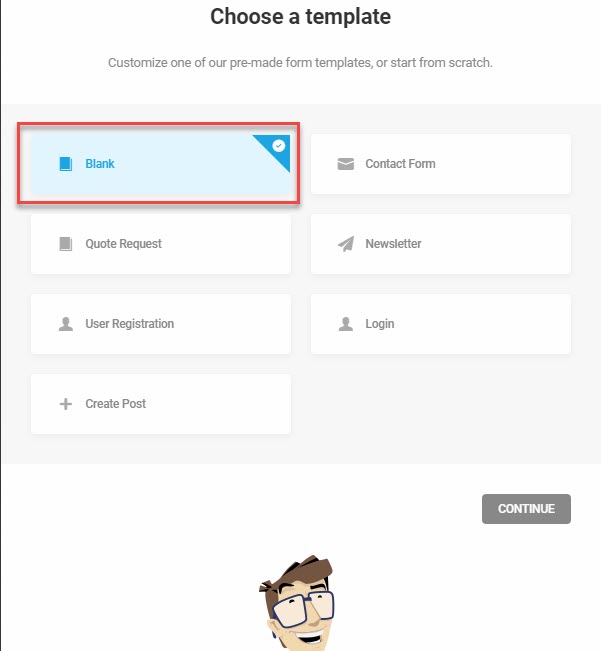
Forminator: Blank Template
-
Enter a
Namefor your form. ClickCreate.
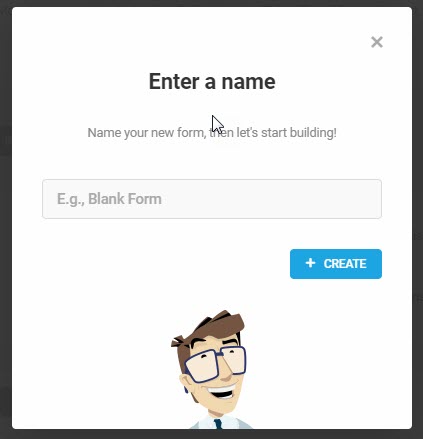
Forminator: Blank Form Name
-
Click
INSERT FIELDSto insert a new field. -
Select
Sectionand clickINSERT FIELDS.
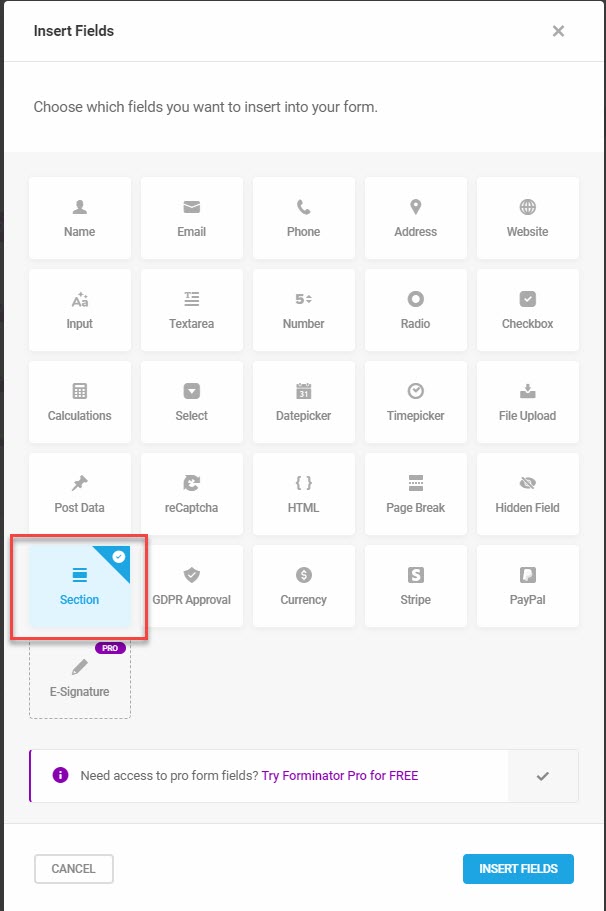
Forminator: Select Section
-
Enter a section
Titleand optionalSubtitle. ClickAPPLY.
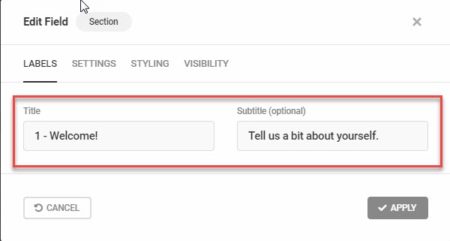
Forminator: Section Title and Subtitle
-
Insert additional fields of your choice.
-
Insert a
Page Breakfield to add a new page to your form. ClickINSERT FIELDS.
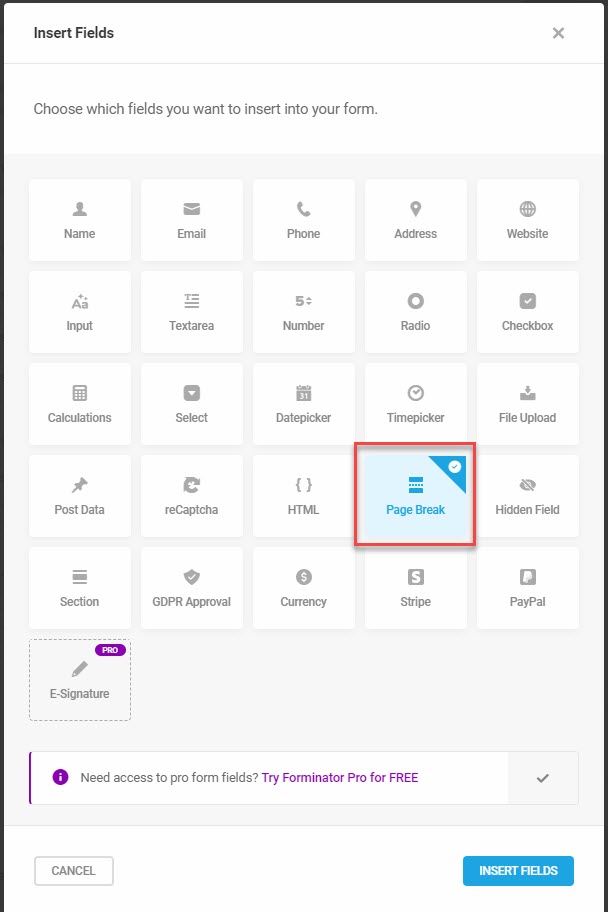
Forminator: Page Break Field
-
A
Paginationsection is automatically added at the top of theEdit Formscreen when the firstPage Breakfield is added.
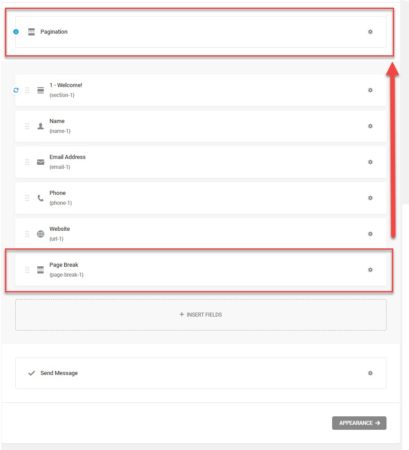
Forminator: Pagination Section
- Click on the
Edit Fieldgear icon of thePaginationsection to customize the pagination of your form such asLabelsandSettings.

Forminator: Edit Pagination
In thePagination Settingstab, you can choose to show or hide progress settings for your multi-step form. Select eitherStepsorProgress Bar. Then, clickAPPLY.
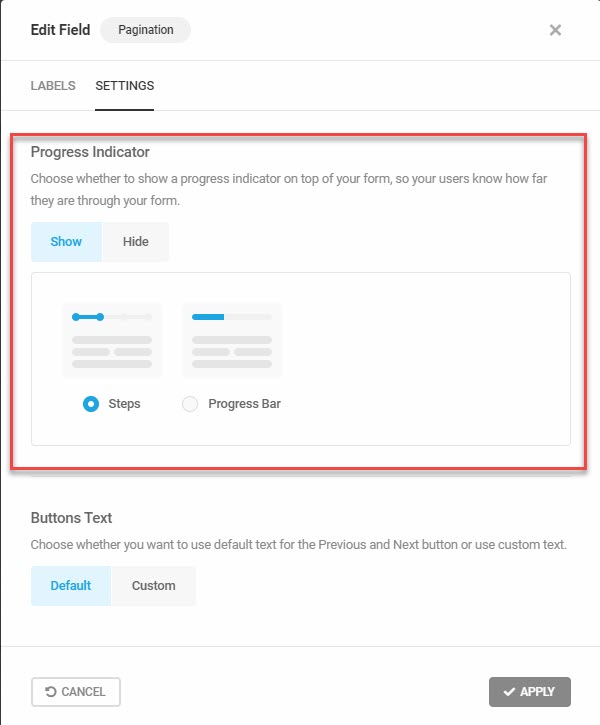
Forminator: Pagination Progress Settings
If you selectSteps, your multi-step form will show your form pages as numbered steps.
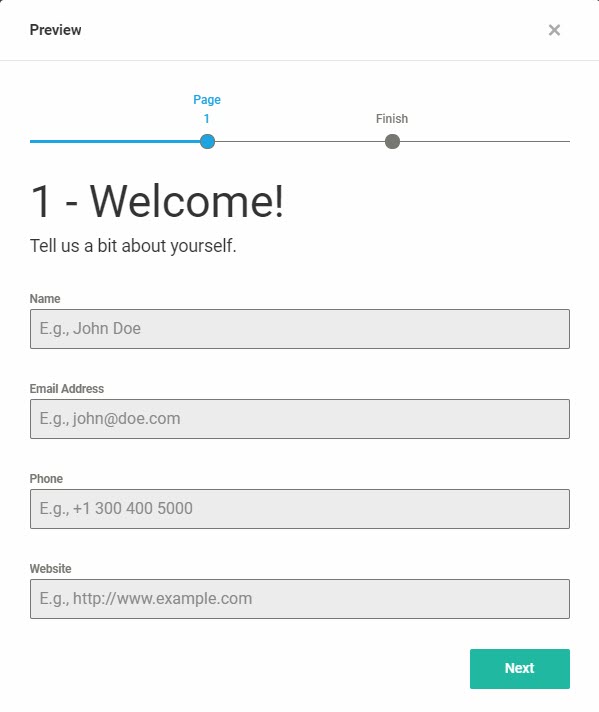
Forminator: Steps Pagination
Alternatively, if you selectProgress Bar, your multi-step form will show the progress in percentages:
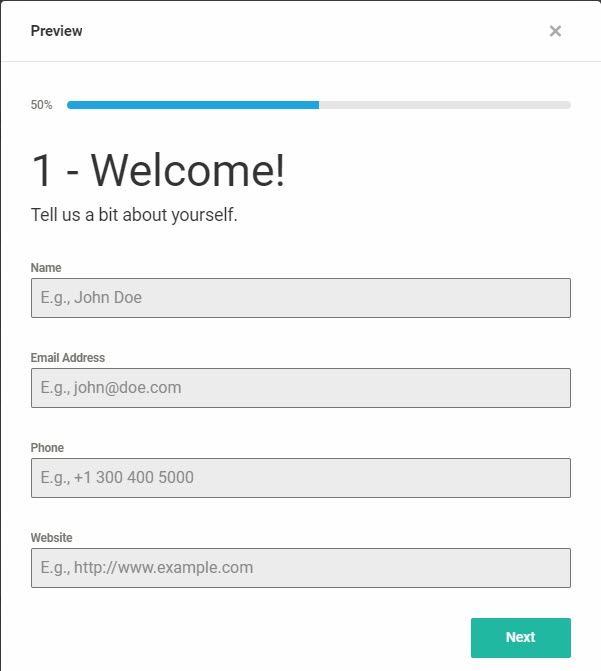
Forminator: Progress Bar Pagination
- Click on the
-
Continue to insert additional fields of your choice (Forminator has more than two dozen field types!) and add page breaks until your multi-page form is complete.
-
The last field,
Send Message, is added to the form by default. It can be customized but not deleted.
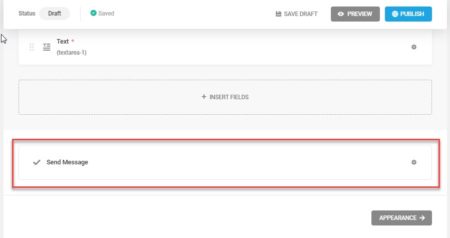
Forminator: Send Message Field
-
At any time of your form building, save your form with
SAVE DRAFT. Preview your form withPREVIEW. When you are ready, publish your form withPUBLISH.
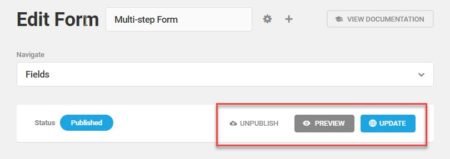
Forminator: Save Draft | Preview | Publish
After publishing, you will be presented with a screen to show you the embed code for your form.
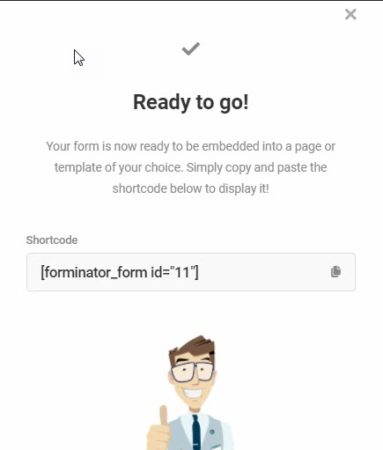
Forminator: Shortcode
How to Embed Your Form into a WordPress Page or Post
To embed your published form to your WordPress page or post, simply add the Forminator shortcode in the editor, save and publish and you are good to go.

Forminator: Embed Form
Multi-step Form Demo
Here’s a sample multi-step form that we have just created. Take it for a spin and if you would like more information about Forminator, please don’t hesitate to consult the documentation here. Thank you for reading.
Comments